Automate Sage 50.
No API, no plugin, no IT project.
Fleet AI works inside Sage 50 the way your bookkeeper does: it opens invoices, enters lines, runs reports and sends them out. Drafts stay open for your review, so nothing is posted until you say so.
Built-in Sage 50 actions: open documents, set customers and vendors, add lines, run and export reports.
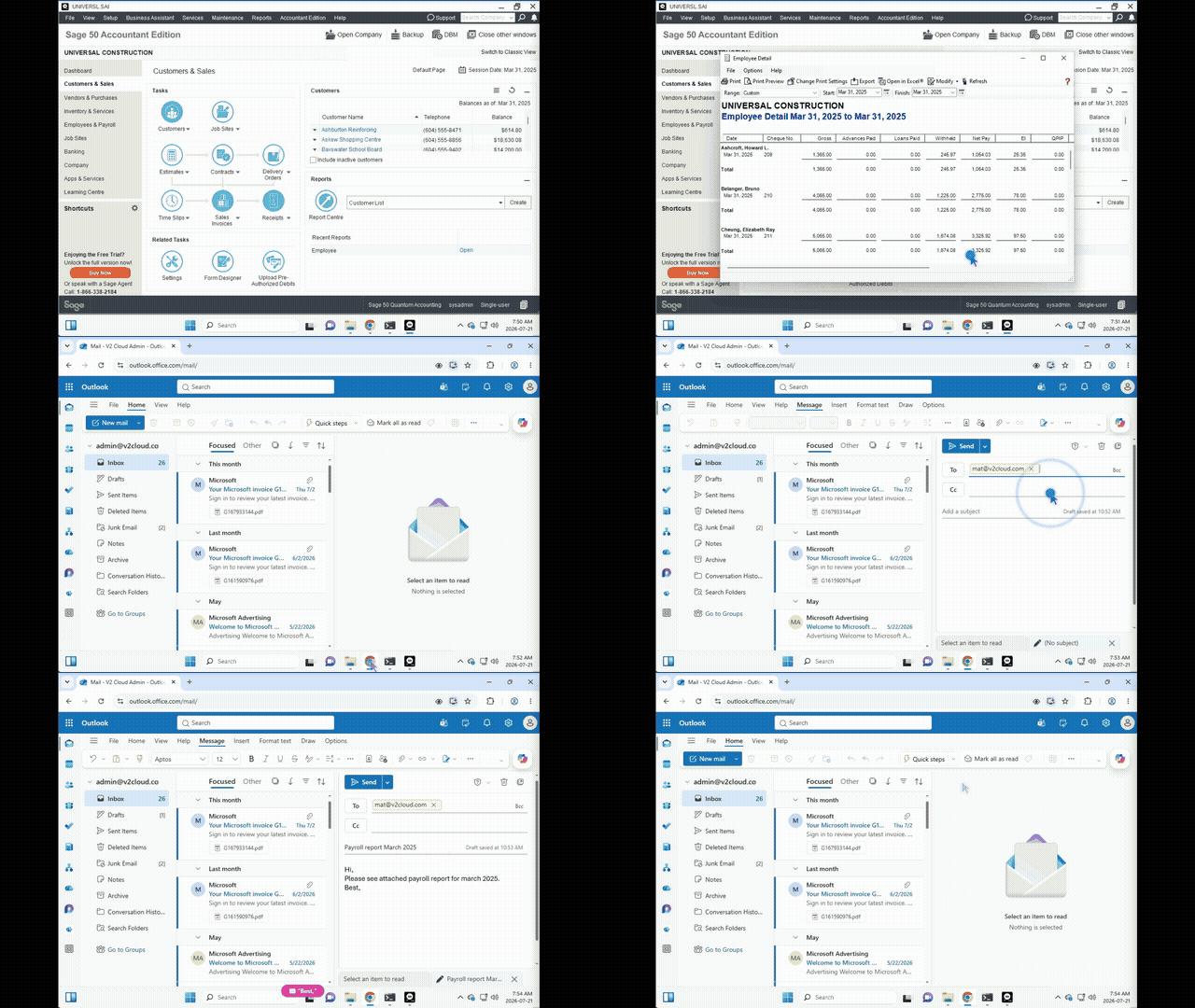
- 01Open Reports › Payroll › EmployeeSage 50 action
- 02Set the period: Mar 1 – Mar 31Sage 50 action
- 03Export the report to ExcelPayrollEmployeeReport.xlsxSage 50 action
- 04Draft the email with the file attachedBrowser
- 05Waiting for your OK to sendApproval
- 06Sent. Run recorded step by stepDone
Example run — Export the payroll report and email it
Sage 50 keeps your books. Feeding it eats your week.
There's no real API
Sage 50 is a desktop program. Most automation tools need an API or a sync connector, and the connectors that exist only cover a sliver of what your team does all day.
The same clicks, every week
Keying invoices from PDFs, running the same payroll report for every client, exporting statements at month-end. It's skilled staff doing unskilled work.
Mistakes cost more than time
A wrong GL code or a missed bill turns into a correcting entry, a call from a client or a surprise at year-end. You need automation you can actually check.
The Sage 50 work Fleet AI takes off your plate.
Start with one task. Once it runs reliably, add the next. Every workflow is yours to read, edit and schedule.
Sales invoice drafts
Give it the customer and the line items from an email, a PO or a spreadsheet. Fleet opens a new sales invoice, sets the customer, adds each line, checks the result and leaves the draft open for you to review.
Supplier bills
Pull bills from vendor portals and your inbox, then enter them as purchase invoices with the right vendor and accounts, ready for your approval.
Payroll reports on schedule
Run the employee payroll report for the period, export it to Excel or PDF, and email it to whoever needs it, every pay period.
Month-end reporting
Balance sheet, income statement, aged receivables. Run the reports, export them to PDF and file them where your team expects to find them.
Collections reminders
Pull the aged receivables list and draft a reminder for every overdue invoice, statement attached. The drafts wait in your outbox for review.
Customer & vendor records
Create or update customer and vendor cards from a sign-up form or a spreadsheet, without retyping every field.
It knows Sage 50. It doesn't guess at pixels.
Most "AI that uses a computer" tools take a screenshot, guess where to click and hope. On a dense accounting screen that is slow, expensive and error-prone. Fleet AI has built-in Sage 50 actions, and only falls back to looking at the screen when it has to.
Built-in Sage 50 actions
Open an invoice, set the customer, add a line, run and export a report. Each one is a single, tested action, not a dozen guessed clicks.
Sage 50's own rules still apply
Everything goes through Sage 50's normal windows, so its validation runs exactly as it does for your staff. Fleet never writes to the company file directly.
Stops before Save and Post
The built-in invoice routine never saves or posts on its own. It checks the draft and hands it to you. In your own workflows, you choose where a human signs off.
From first call to first run.
- Step 1
Connect the computer
Install the Fleet agent on the Windows PC or cloud desktop that already runs Sage 50. It connects out to Fleet AI — no inbound ports, no VPN.
- Step 2
Show it once
Do the task once while explaining it, or describe it in plain English. Fleet turns it into a workflow with steps you can read and edit.
- Step 3
Approve and run
Approve the plan, then run it with one click or put it on a schedule. Choose the steps where it must wait for a human.
- Step 4
Check its work
Every run is recorded step by step. Watch it live, take over at any moment, or review it afterwards like an employee's work.
Sage 50 automation, answered.
Does Fleet AI need a Sage 50 API, SDK or plugin?
No. Fleet AI uses the Sage 50 you already have installed, through its normal windows, menus and reports. Nothing is installed inside Sage 50 and no add-on is required.
Which versions of Sage 50 does it work with?
Any version. Fleet AI works through Sage 50's normal windows and menus, the same way your staff does, so it doesn't depend on a particular edition or year, and there's no plugin to keep compatible after an upgrade.
Will it post transactions without me?
Not unless you decide it should. Plans are approved before a run starts, the built-in invoice routine always stops before saving, and you can require your approval at any step of a workflow.
Where does it run?
On the Windows PC or cloud desktop where Sage 50 already lives. You install the Fleet agent, which connects out to Fleet AI. No inbound ports, no VPN. If your Sage 50 is hosted with V2 Cloud, setup is even quicker.
Can it run on a schedule?
Yes. Run any workflow with one click, or schedule it hourly, daily, weekly or monthly, including "last day of the month". Every scheduled run is recorded like any other.
What does it cost?
You pay for the time the AI is actually working, not for seats or licences. We'll look at your workflow on the call and give you an estimate before anything runs.
Bring us the Sage 50 task your team hates most.
15 minutes. If it’s a fit, we build it — and you judge the result.